Why identity alerts deserve their own approach
Most identity alerts come down to one question: is the person who logged on really the owner of the account? Five patterns come up again and again: impossible travel, password spraying, MFA fatigue, a new device followed by a privileged action, and a service account logging on interactively. Each has a clear signature in identity logs and a short list of checks that settle most cases.
Identity matters because stolen credentials let an attacker skip the noisy parts of an intrusion. Valid Accounts (T1078 in MITRE ATT&CK) appears across Initial Access, Persistence, Privilege Escalation and Defense Evasion for that reason. A correct password and an approved MFA prompt look, at first glance, exactly like a normal working day.
The data lives in your identity provider. Okta writes events to its System Log, with fields such as eventType, actor.alternateId, client.ipAddress, client.geographicalContext, client.userAgent and outcome.result. Microsoft Entra ID keeps sign-in logs, split into interactive and non-interactive sign-ins, with the user principal name, IP address, location, device details, application, error code and Conditional Access result, plus audit logs for changes such as role assignments.
Impossible travel
Impossible travel means two successful sign-ins for one account from places too far apart to travel between in the time that passed, for example London at 09:00 and Singapore at 09:40. The alert is easy to raise and often wrong, because IP geolocation is approximate and many legitimate services route traffic through distant addresses.
Check the cheap explanations first. Is one of the addresses a corporate VPN exit, a cloud proxy or a mobile carrier gateway? In Okta, securityContext can mark an address as a proxy; in Entra ID, named locations show your known ranges. Was one of the events a token refresh by a phone app rather than a person logging on? Then look at what matters: was the second session on a device and browser the user has used before, did it pass MFA, and what did it do next? A session from a new country on an unknown device that went straight to mail forwarding rules or a file-sharing site is a very different case from a phone app refreshing a token.
If the second session looks wrong, widen the view. Look at every session for that account over the past week, not just the two that raised the alert, and check whether the unfamiliar address or device appears for any other user. An address that shows up on several accounts at once is much more likely to be an attacker’s infrastructure than a traveller’s hotel.
Password spraying
Password spraying turns brute force on its side. Instead of many passwords against one account, the attacker tries one or two common passwords against many accounts, slowly, to stay under lockout thresholds (T1110.003). No single account looks badly attacked; the pattern only shows when you group by source.
Look for one IP address, or a small set of addresses with the same user agent, producing failed logons for many different usernames in a short window. In Entra ID, failures for a wrong password carry error code 50126, and smart lockout events carry 50053. In Okta, look for outcome.result FAILURE with reasons such as INVALID_CREDENTIALS across many actors. Spraying often targets legacy protocols that do not support MFA, so check the client application too.
The most important follow-up is the success hidden among the failures. Take the source addresses from the spray and search for any successful logon from them, for any account. One success is a compromised account, and the investigation moves to what that account did next.
- Group failures by source IP and user agent, not by user
- Count distinct usernames per source in a short window
- Check which client applications and protocols were used
- Search for any successful logon from the same sources
MFA fatigue
MFA fatigue, which ATT&CK calls Multi-Factor Authentication Request Generation (T1621), is what happens when an attacker already has the password. They trigger push notification after push notification until the user, tired or confused, approves one. Sometimes they add a phone call or message pretending to be the help desk.
In Okta, push notifications appear as system.push.send_factor_verify_push events, and rejected pushes as user.mfa.okta_verify.deny_push. In Entra ID, look for repeated MFA requests and denials in the sign-in logs for one user. The signature is a run of pushes and denials in a few minutes, from an address the user does not normally use, ending in an approval. Treat that final approval as a likely compromise until shown otherwise, and talk to the user directly: did they approve it, and did anyone call them?
Then follow the approved session. Which application did it reach, from which address and device, and what did it do in the first hour? Attackers who win an MFA approval usually move quickly: they register their own MFA method so they do not need the user again, read mail, or look for files and admin consoles. Number matching and other phishing-resistant methods make this attack much harder, so if the logs show plain push approvals being abused, that is also a finding about configuration, not only about one user.
New devices, privileged actions and service accounts
A sign-in from a new device is common and usually harmless. It becomes worth an investigation when it is quickly followed by something privileged: a new MFA factor registered, an admin role granted, a new application consent, a mailbox rule, or a password reset for another user. In Okta, look for events such as user.mfa.factor.activate and user.account.privilege.grant after the new session. In Entra ID audit logs, look for activities such as “Add member to role” or “User registered security info”. The pairing, new device then privilege, is the signal.
Service accounts are the other quiet risk. They exist for programs, run with fixed credentials and often hold broad rights. A service account logging on interactively, through a browser, a remote desktop session or an SSH shell, is unusual by definition. On Windows, look for Event ID 4624 with logon type 2 (interactive) or 10 (remote interactive) for accounts that should only ever log on as a service or batch job. In cloud identity logs, look for interactive sign-ins by accounts that normally appear only in non-interactive logs.
For both patterns, the investigation follows the same steps. Establish the account’s normal behaviour from the past few weeks: usual devices, addresses, applications and logon types. Mark exactly where the new activity departs from it. Then trace what the session did, and check with the account owner, or for a service account the team that runs the program, whether any of it was planned. Write down what they say; it is the evidence that closes the alert either way.
Where armor360 fits
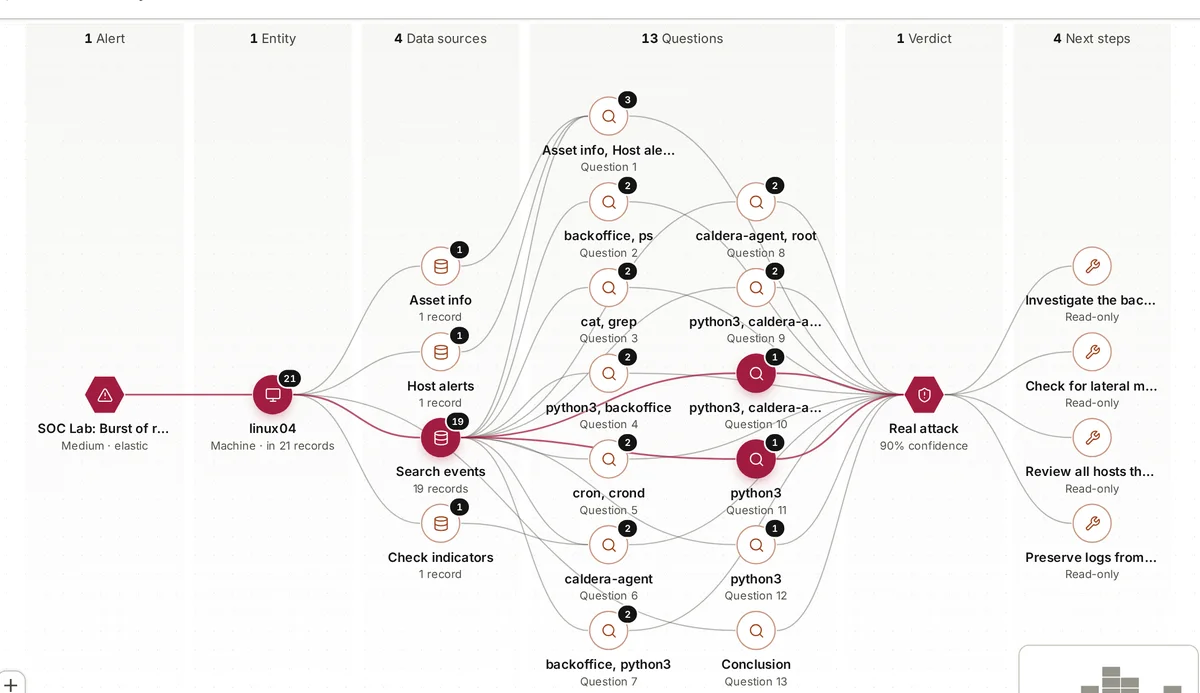
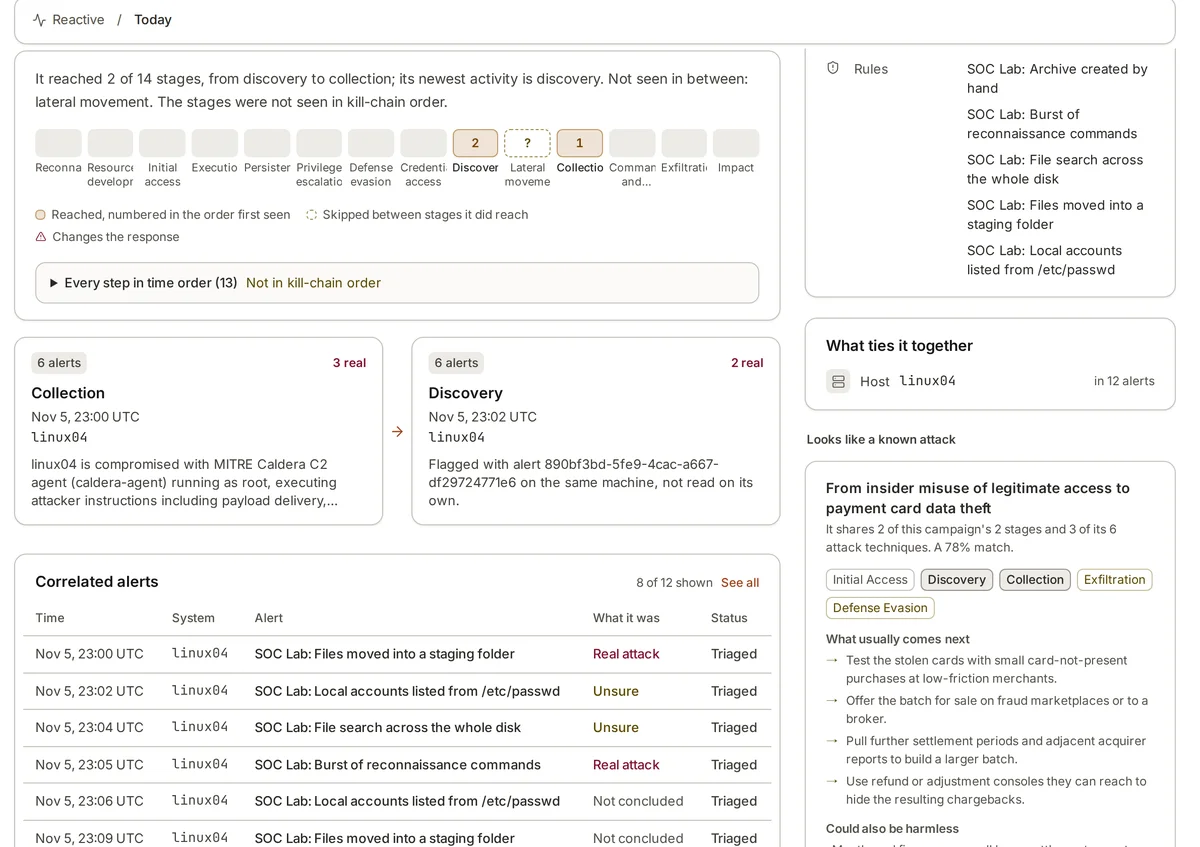
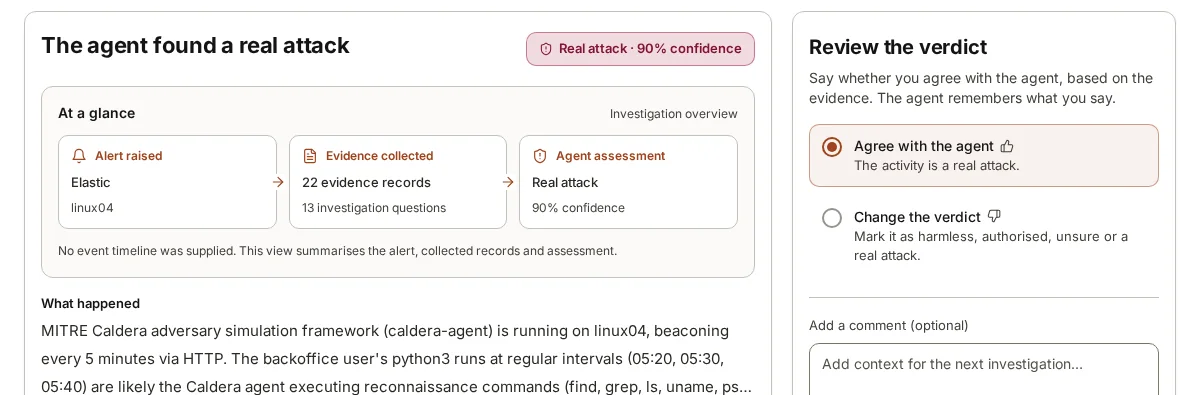
armor360 investigates identity alerts raised in the security tools you already run, querying user activity, other alerts and threat-intel lookups of the source addresses, and hands a person a verdict with the evidence cited. A person agrees with the verdict or changes it; that correction is remembered for later investigations.
armor360 itself supports single sign-on through Okta, Microsoft Entra ID or any OIDC provider. It takes no response actions on accounts; your people decide and act.